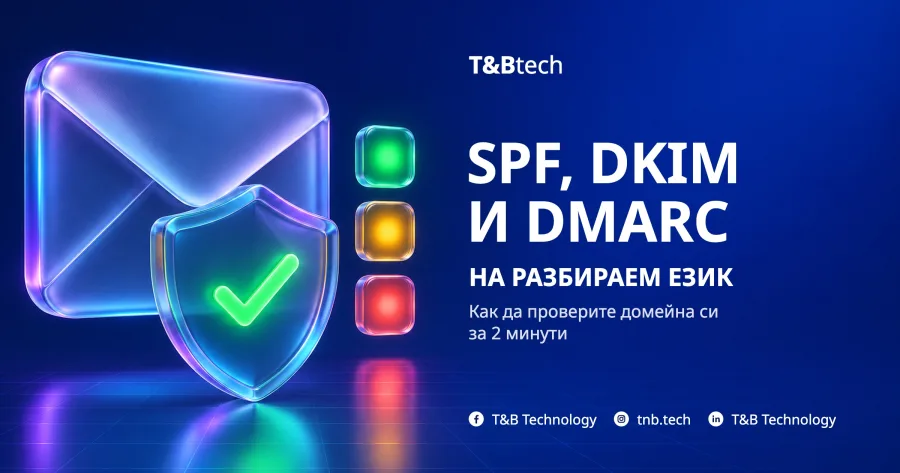
SPF, DKIM and DMARC in plain English: how to check your domain in 2 minutes
Three DNS records decide whether mail from your business address reaches the inbox. What each one does, how to check them in two minutes and what to do about every result.
You send a quote, and a week later the client finds it in their spam folder. Or never finds it at all. Often the reason is not the wording of the message but three records in your domain's DNS settings: SPF, DKIM and DMARC. Mail servers use them to decide whether a message from your business email really comes from you.
Since February 2024 Gmail and Yahoo, and since 5 May 2025 Outlook, have required all three records from bulk senders. For Gmail and Outlook that means anyone sending more than 5,000 messages a day to their addresses; Yahoo gives no number. Smaller senders are filtered on the same records. Here is what each record does, how to check them in two minutes and what to do about every result.
Three records, three questions
- SPF: who may send in my name? The list of servers allowed to send mail from your domain: your mailbox provider, your online shop, your invoicing software, your newsletter platform. A message from a server that is not on the list looks suspicious.
- DKIM: is this the message I sent? The sending server adds a digital signature to every message. The recipient checks it against a public key published in your domain's DNS. If someone changes the message on the way, the signature no longer matches.
- DMARC: what happens if the check fails? With this record you tell the recipient what to do with a message that claims to be from you but passes neither SPF nor DKIM for your domain. There are three options: let it through (
p=none), put it in spam (p=quarantine) or reject it (p=reject). The same record names an address for reports. There is more in the glossary entry DMARC record.
SPF and DKIM provide the proof; DMARC makes the decision. Without DMARC anyone can send your customers a message in your domain's name, a fake invoice with different bank details for instance, and mail servers will not know what to do with it.
How to check your domain in 2 minutes
- Open the free SPF, DKIM and DMARC check on tnb-tech.com.
- Enter your domain, for example
example.com, or any email address on it. Only the part after the @ is used. - Press “Check”. A few seconds later you will see a sentence at the top with the overall verdict and, below it, one row for each record with a word and a colour.
- If the DKIM row says “NOT FOUND”, find your selector (we explain how below), enter it in the “DKIM selector” field and check again.
The check reads only the domain's public DNS records, does not connect to your mail and keeps nothing you type. Where the fix does not depend on your provider, you will also get a ready-made record to copy.
What each result means
The sentence at the top tells you whether mail from the domain is protected, partly protected or not protected. Below it, every row has a word and a colour. The word is what matters; the colour helps you spot it at a glance.
| Word | Colour | What it means |
|---|---|---|
| OK | green | The record is in place and works. |
| TO IMPROVE | yellow | It works, but something should be fixed. |
| MONITORING | yellow | DMARC only monitors (p=none). |
| NOT FOUND | yellow | No DKIM key under the most common selectors. That does not mean there is none. |
| MISSING | red | There is no such record. |
| ERROR | red | The record is wrong. The row says what exactly. |
| WEAK KEY | red | The DKIM key is shorter than 1024 bits. |
| OPTIONAL | blue | Extra protection; your mail works without it. |
SPF
OK means the record ends in ~all or -all. With ~all, mail from servers outside the list is accepted but marked as suspicious; with -all it is rejected. The row also shows how many of the 10 permitted DNS lookups the record uses.
If you see MISSING, ask your mail provider which record to publish: they know which servers you send from. ERROR usually means one of three things: there are two SPF records, and servers then treat the domain as if it had none; the record needs more than 10 DNS lookups, because every include counts, often for services you stopped using long ago; or it ends in +all and allows every server on the internet to send in your name. TO IMPROVE means the record ends in ?all or has no all, so it does not say what to do with mail from other servers. Change the ending to ~all once your provider has confirmed that all your servers are on the list.
DKIM
OK means the key is published and is at least 2048 bits long. TO IMPROVE means it is shorter: it works, but 2048 bits is today's recommendation. WEAK KEY means it is under 1024 bits and many servers do not accept the signature. In both cases, ask your mail provider for a new 2048-bit key.
NOT FOUND is yellow, not red, and that is on purpose. The check looks for the key under the 18 selectors that providers use most often, and many providers use names of their own. So “not found” does not mean there is no key. To find your selector, send a message from your business address to a personal mailbox, open the original (in Gmail, “Show original” is in the three-dot menu) and look for the DKIM-Signature line. The selector is the value after s=.
DMARC
If you see MISSING, mail servers do not know what to do with a message that claims to be from you, and they send you no reports. The check gives you a starter record to copy: v=DMARC1; p=none; rua=mailto: followed by the address of a mailbox you actually read. It only monitors and does not stop any mail.
MONITORING means p=none. It is a good start, but a message that claims to be from you still reaches the recipient. Read the reports. Google advises at least a week, and we recommend two to four weeks, so that they also cover mail that does not go out every day, such as the newsletter. When the reports show that all your mail passes SPF or DKIM, move to p=quarantine, and later to p=reject.
TO IMPROVE on DMARC means the policy is quarantine or reject but the record has no rua, so you get no reports. ERROR means the record is wrong, for example there are two DMARC records or the p policy is missing, and servers do not apply it. OK means a message that claims to be from you and fails the check goes to spam or is rejected.
The other rows
NO MX or NO MAIL in the “Mail (MX)” row means the domain receives no mail. If you send none from it either, the check suggests SPF v=spf1 -all and DMARC p=reject so that nobody else can use it. “Encryption in transit” and BIMI are OPTIONAL: they add protection, but your mail arrives without them. NOT CHECKED means DNS did not answer in time; try again in a moment.
The records are fine, but your mail still lands in spam?
The three records get you through the door; they do not guarantee the inbox. Filters also look at the reputation of the server and the domain, the content and links in the message, and how many recipients mark it as spam. Gmail and Yahoo want that share below 0.3%. The most common reasons are:
- newsletters sent to an old list full of inactive and non-existent addresses;
- marketing messages without an easy way to unsubscribe, which Gmail and Yahoo require from bulk senders;
- links to a website or to shortened addresses with a poor reputation.
How to do email marketing that reaches the inbox is a topic of its own. If your records are fine and your messages still go to spam, send us an example and we will look for the reason.
Who makes the changes
The records are changed in the domain's DNS settings: at the registrar, at the hosting company, or in Cloudflare if the domain runs through it. If you are not sure where they are, the domain check shows which registrar the domain is with and who holds its DNS, hosting and mail. If you have no access, find out who the domain registrant is: the registrant owns the domain and can request access.
Before you change SPF, check with your mail provider and every service that sends mail in your name. Leave one out and its messages may stop arriving. That is why DMARC is tightened step by step, after the reports, and not on the day you publish it.
If you would rather not deal with it, we set up SPF, DKIM and DMARC as part of website maintenance and check that your mail arrives. And how email works together with search, advertising and social media is covered in our guide to digital marketing.
Frequently asked questions
Does a small business need SPF, DKIM and DMARC?
Yes. Gmail, Yahoo and Outlook require all three records from bulk senders, but mailbox providers filter smaller senders on the same records. And without DMARC anyone can send mail in your domain's name, however little mail you send yourself.
Will DMARC block my own mail?
Not while the policy is p=none: it only monitors and sends you reports. Mail is stopped only under p=quarantine or p=reject. You move to them once the reports show that all your mail passes SPF or DKIM.
Can I have two SPF records, one for my mailbox and one for my newsletter?
No. When a domain has two SPF records, mail servers treat it as if it had none. Every service that sends in your name goes into one record, usually with one include each. The check on tnb-tech.com also shows a draft of the merged record; show it to your provider before you publish it.
How long does a DNS change take to show?
Usually from a few minutes to a few hours, depending on the old record's time to live (TTL). The check keeps its result for 10 minutes, so if you have just changed a record, check again a little later.
Is the domain I enter in the check stored?
No. The check is free and needs no sign-up. It reads only public DNS records and keeps nothing you type; the result stays for 10 minutes.
Sources
- Email sender guidelines · Gmail Help (Google)
- Sender Best Practices · Yahoo Sender Hub
- Strengthening Email Ecosystem: Outlook’s New Requirements for High-Volume Senders · Microsoft Tech Community ·
- Recommended DMARC rollout · Google Workspace
- RFC 7208: Sender Policy Framework (SPF), 4.6.4 DNS Lookup Limits · IETF / RFC Editor
Prepared with the help of AI. Editor: T&B Technology.
Website maintenance
Monthly care — checks, backups, updates, a report.
CASE STUDYPopov Logistic: a corporate website in 7 languages
A corporate website for Popov Logistic, a freight forwarding company from Ruse, Bulgaria: 7 languages, a 3-step quote form, an admin panel and custom analytics.